Native app for iPhone and iPad
YouTube on iPhone, with ad blocking and background playback
Watch YouTube's website inside anyPWA, a native iPhone and iPad app. Block video ads, keep audio playing when you lock the screen, and use Picture in Picture while you do something else.
- Built-in ad blocking for YouTube
- Background and locked-screen playback
- Picture in Picture and Lock Screen play/pause controls

Free for one saved website, including ad blocking and playback.
Getting started
Set up YouTube in anyPWA
The screenshots show iPhone. Follow the same steps on iPad. Tap a screenshot to enlarge it.
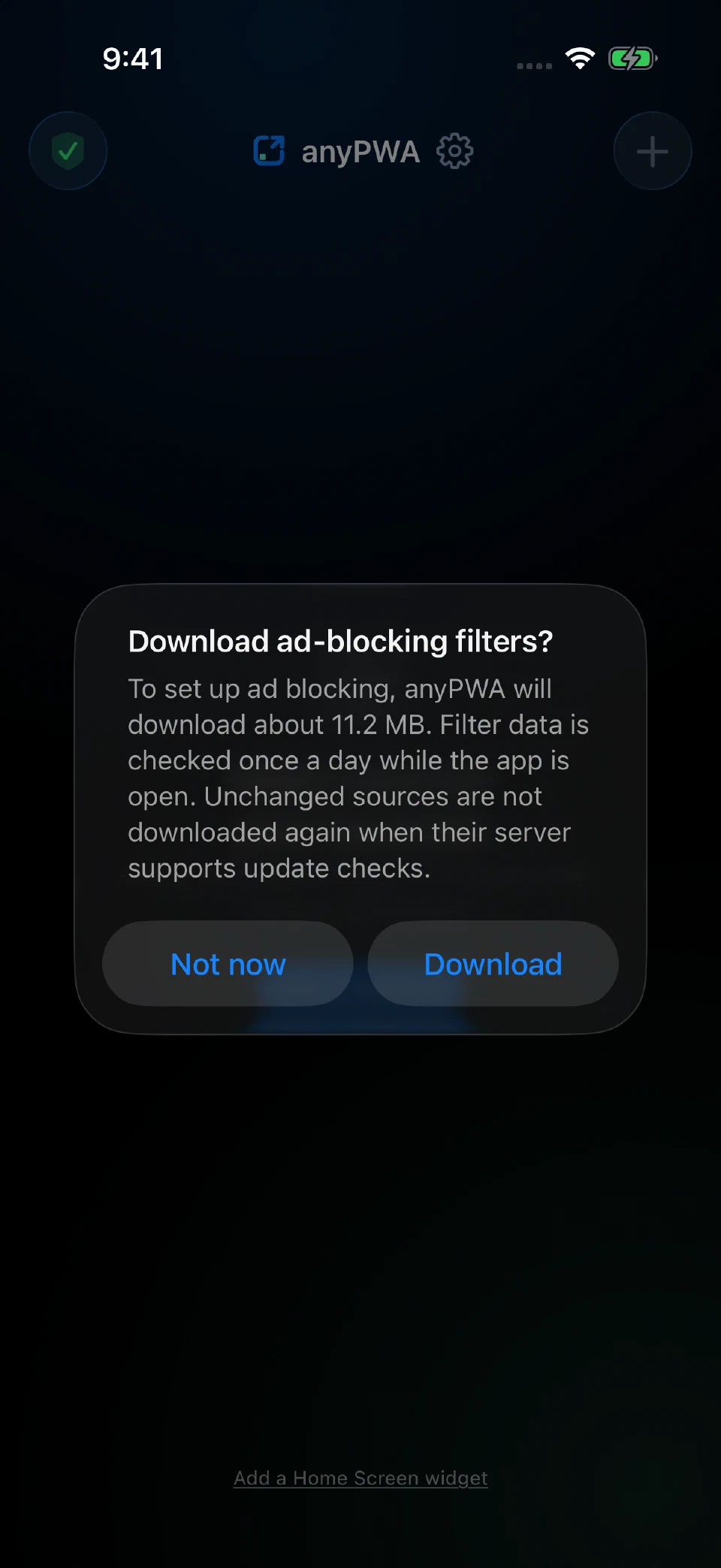
Install and download filters
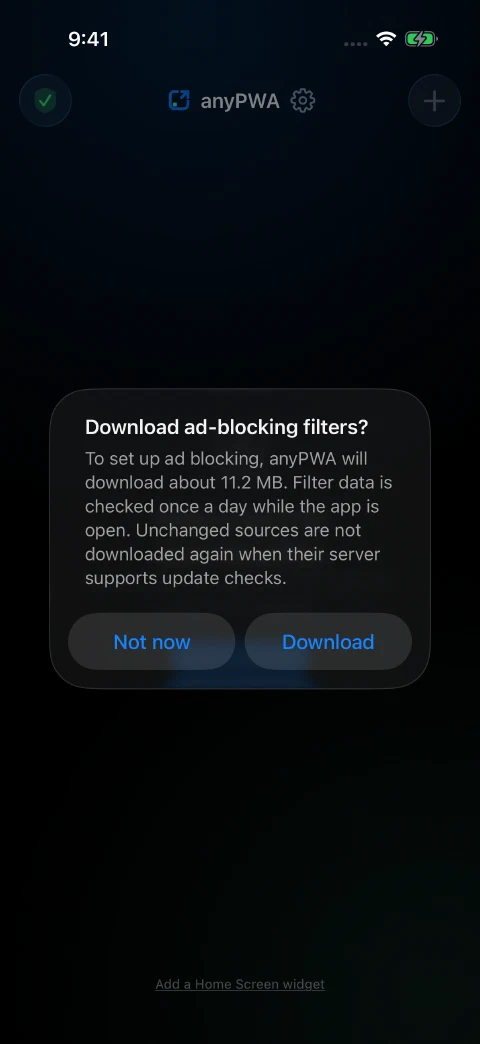
Install anyPWA from the App Store and open it. If it asks to download ad-blocking filters, tap Download. Let the download finish before opening YouTube.
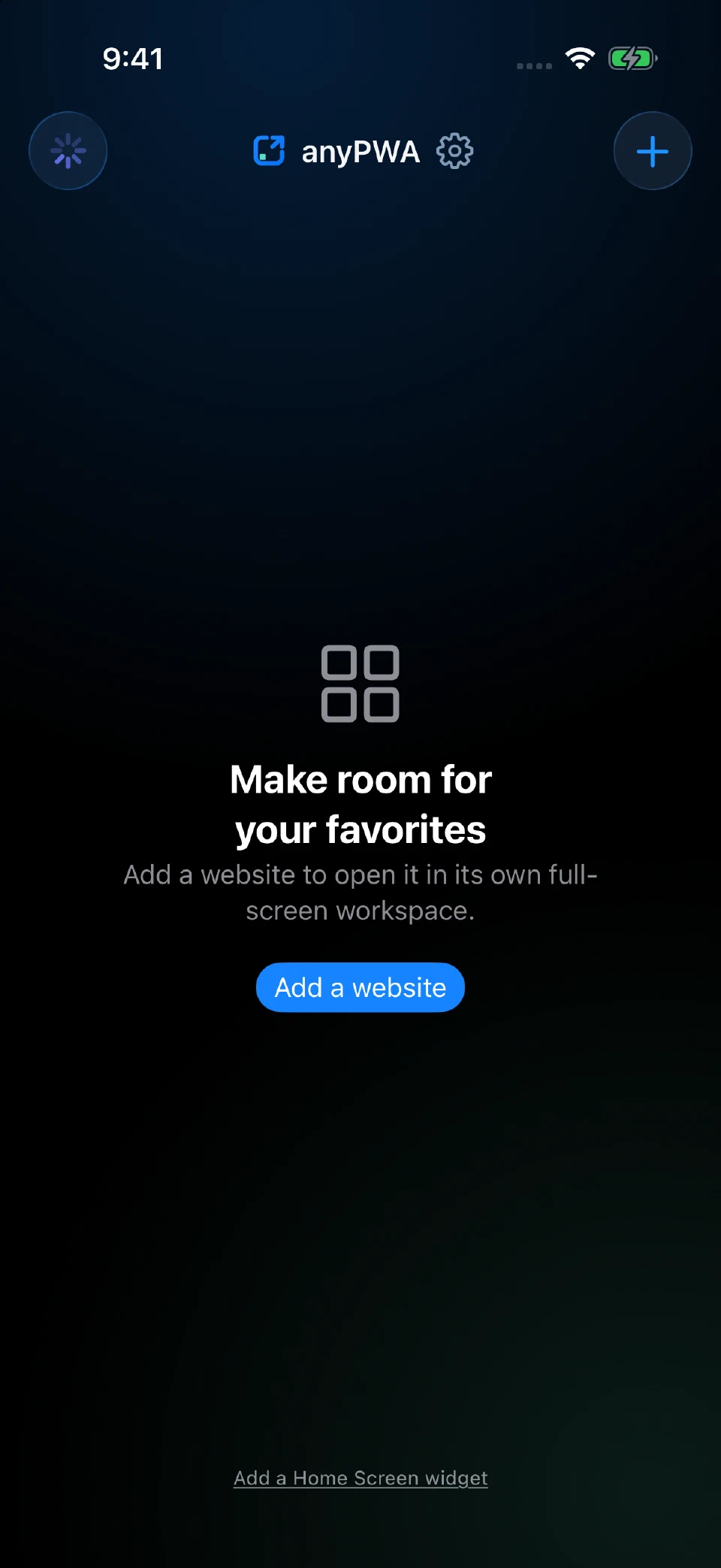
Add a website
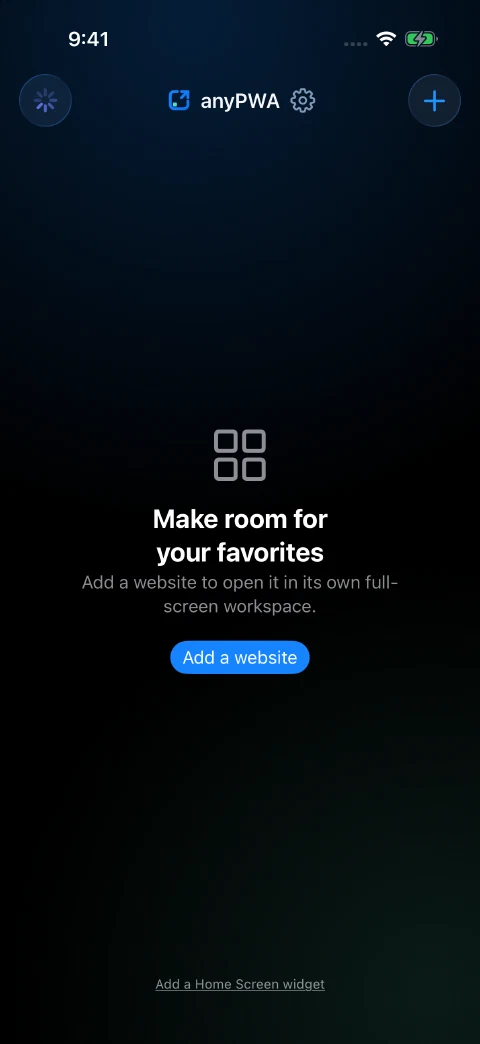
Tap + at the top right of the library to open Add website. In an empty library, you can also tap the blue Add a website button.
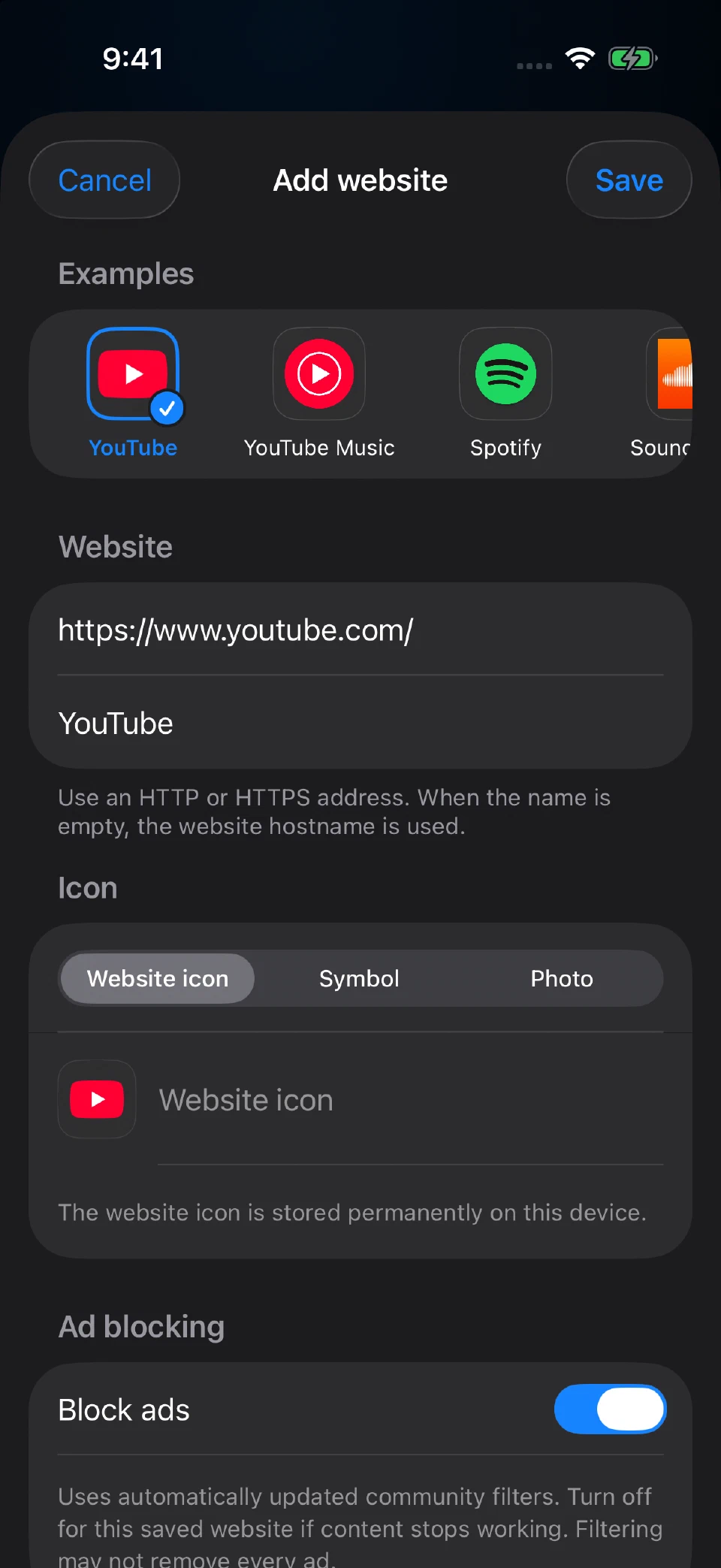
Choose YouTube and save
Tap YouTube under Examples. anyPWA fills in the name, address and icon. Leave Block ads on, then tap Save.
You can also enter
https://www.youtube.com/manually.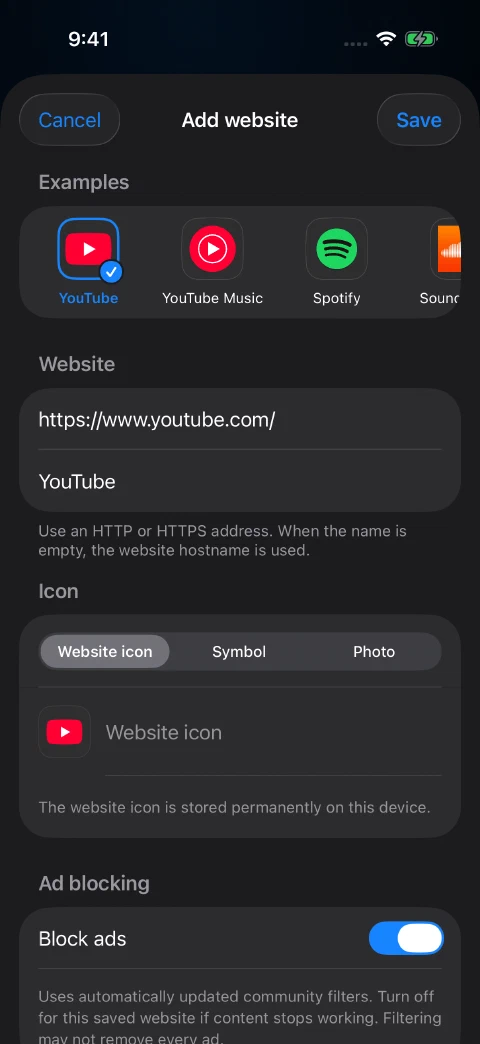
Open YouTube and start watching
After saving, tap YouTube in your anyPWA library. YouTube opens in its own fullscreen view. You can browse and watch videos, or sign in to your Google account to access your subscriptions and playlists.
Your Google sign-in stays in this saved website. Signing in to the YouTube app or Safari does not sign you in to this separate website view.
Keep listening with the screen locked
Start a video, then switch to another app or lock your iPhone or iPad. The audio can keep playing in the background. Use play and pause on the Lock Screen or in Control Center.
This streams the video from YouTube. Background playback does not mean the video has been downloaded for offline use.
Watch in Picture in Picture
Once a video is playing, use the Picture in Picture button on the video to move it into a floating window. You can then use another app while the video stays visible.
Questions
Does this use the YouTube app?
You use YouTube’s website inside anyPWA. The menus and layout are the web interface; anyPWA adds its own ad blocking and playback controls.
Is YouTube free to add?
Yes. If YouTube is your one saved website, anyPWA’s ad blocking and playback features are included for free. Adding YouTube Music or another website as a separate entry requires the one-time unlock.
What should I check if ads appear?
Touch and hold your YouTube tile, choose Edit, and check that Block ads is on. You can check the filter status from the icon at the top left of the library. Filters need to finish downloading before they can be used.
YouTube can change its website, so filtering may not remove every ad. If a page stops working, Edit also lets you turn blocking off for that saved website.
Where can I get help?
Contact anyPWA support with your device model and the steps that led to the problem.
Use YouTube as your free website
One saved website is free, including ad blocking and playback features. A one-time in-app purchase unlocks multiple saved websites and library rearranging. There is no anyPWA subscription.
The websites have their own accounts and services. anyPWA does not include a paid subscription to YouTube.
Get anyPWA on the App Store